Make a Hyperlapse from Keyframes with ffmpeg Without Decoding Every Frame
With one keyframe per second, -skip_frame nokey decodes 1 frame in 30 and setpts makes each one a frame at 30 fps: a 36-minute drive becomes 72 seconds.

On this page
TL;DR
When a video has one keyframe per second, decode only the keyframes and give each one a frame at 30 fps. The result plays 30 times faster than the drive:
$ ffmpeg -skip_frame nokey -i <clip>.mp4 -vf "setpts=N/(30*TB)" -r 30 \
    -map_metadata -1 -c:v hevc_videotoolbox -q:v 65 -tag:v hvc1 \
    -color_range pc -an <clip>_30x.mp4
-skip_frame nokey goes before -i, because it tells the decoder to discard
every frame that isn’t a keyframe. setpts=N/(30*TB) gives frame N the
timestamp N/30 seconds, so one second of driving becomes one frame of output.
To keep several cameras in sync, render each recording segment separately, pad every camera’s segment with black to the front camera’s length, and join the segments with a stream copy. The script later in this article does that.
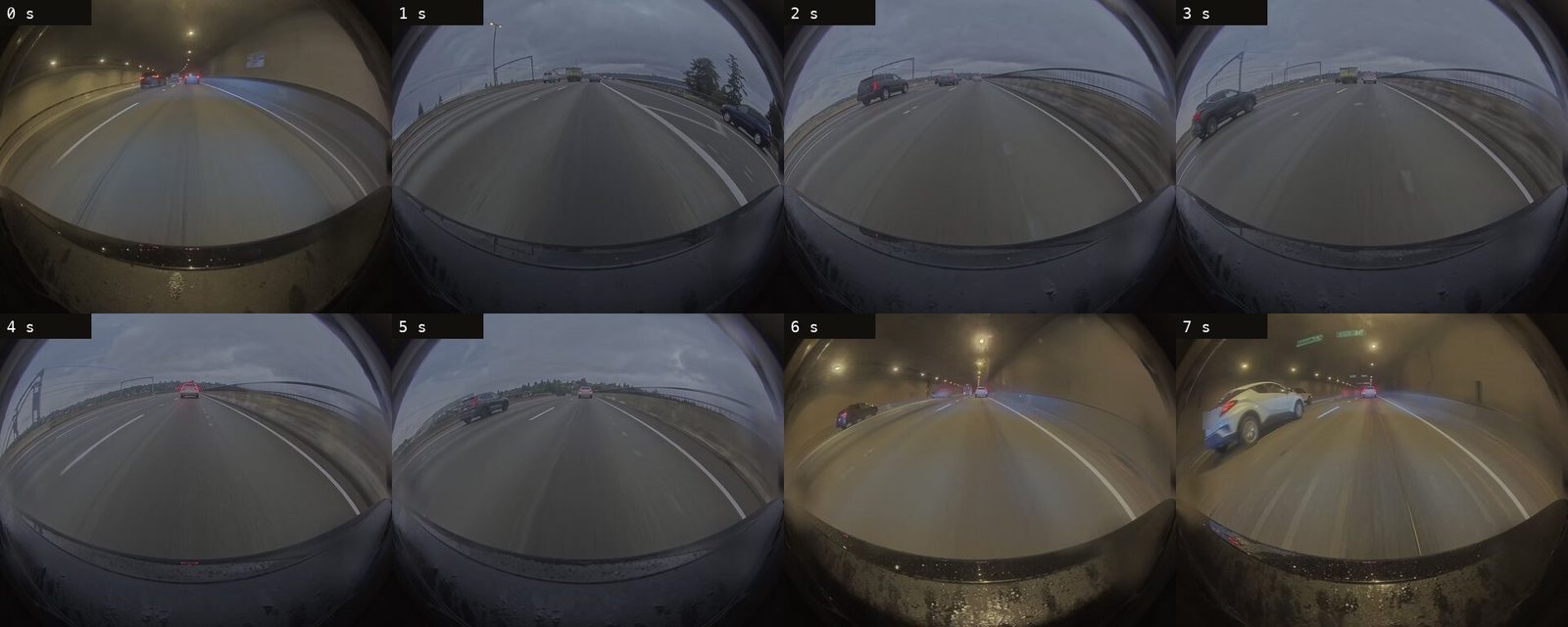
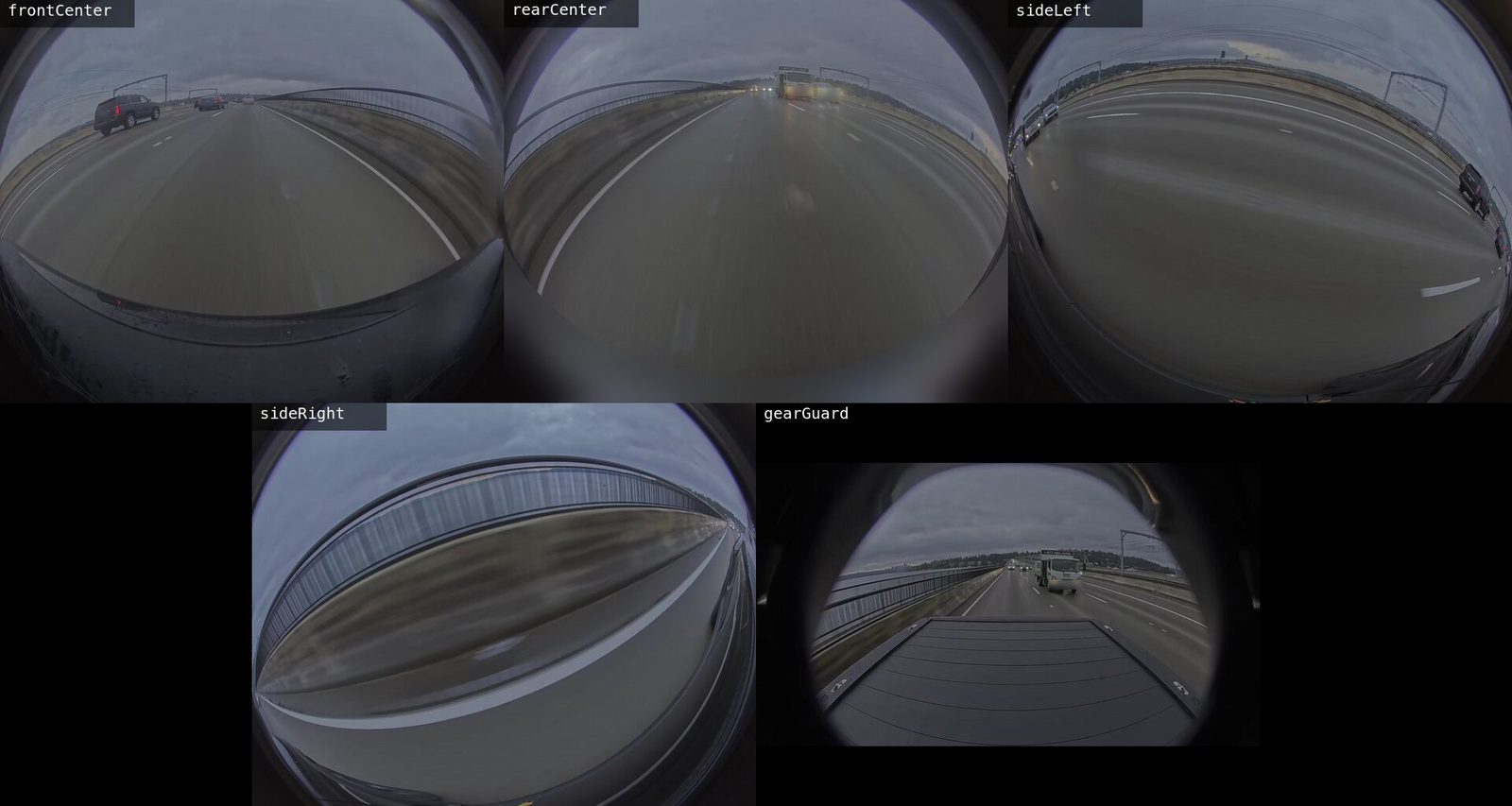
A Rivian R1T films five directions for as long as it’s driven. I wanted a hyperlapse of every drive from a summer of footage, one file per camera, so a drive could be cut as a multi-camera edit at 30× speed. An ordinary hyperlapse decodes 30 frames to keep one, and this footage didn’t need that: the truck writes one keyframe every second. Reading only those, a 36-minute drive became 72 seconds of video and took 4.4 minutes to render, with one drive rendering at a time. The hyperlapses for 218 drives, five cameras each, came to 107 GB.
This is part of a series about reading dashcam video without watching it. How to sort months of dashcam footage with Claude Code is the hub, with the prompts and the checks that drove the whole job.
Tested with
- ffmpeg
- 9.0.1
- macOS
- 27.0, Apple silicon
- Footage
- Rivian dashcam, H.264, 30 fps, one keyframe per second
- Date
- October 2026
Why keyframes are enough
The Rivian’s clips are H.264 at 30 fps with I- and P-frames only, and one keyframe (an I-frame) every second. A keyframe decodes on its own. A P-frame needs the frames before it, so taking every 30th frame of an ordinary decode still means decoding the other 29.
With -skip_frame nokey the decoder drops the P-frames before decoding them.
What reaches the filter is one picture per second of driving, already spaced
evenly in time. The setpts=N/(30*TB) filter discards their timestamps and numbers them
off at 30 per second. N is the frame’s index and TB is the stream’s time
base. Without setpts, the output has the same frames, each still held for a
second, and plays at the speed of the drive.
The speed this produces is fixed by the footage: one keyframe per second, shown at 30 fps, is 30×. Footage with a keyframe every two seconds would come out at 60× from the same command.
Check the keyframe rhythm
Before relying on it, count the keyframes in one clip. In a terminal, run:
$ ffprobe -v error -skip_frame nokey -select_streams v \
    -show_entries frame=pts_time -of csv=p=0 <clip>.mp4 | head -3
Output
0.000000
1.000000
2.000000
Pipe the same command to wc -l instead of head for the count. On a
351-second clip it printed 351, and a full 15-minute segment from the truck
has 900. On some drives one camera’s keyframes fall at 0.967 s past each
second rather than on it, and which camera varies by drive. The spacing is
still one second, which is what the speed depends on.
If the times are not one second apart, the hyperlapse still renders, but its speed is the keyframe interval times 30 rather than 30×.
Render one clip
In the folder that holds the clip, run:
$ ffmpeg -nostdin -v error -skip_frame nokey -i <clip>.mp4 \
    -vf "setpts=N/(30*TB)" -r 30 -map_metadata -1 \
    -c:v hevc_videotoolbox -q:v 65 -tag:v hvc1 \
    -color_range pc -an <clip>_30x.mp4
It writes <clip>_30x.mp4 beside the source and changes nothing else. On a
351-second clip of a bridge crossing, the output was 351 frames and 11.7
seconds long, 11.2 MB from a 438.8 MB source.
The encoder options are the part to change on another machine:
hevc_videotoolboxis the Mac’s hardware HEVC encoder. The Homebrew build of ffmpeg used here includes it;ffmpeg -encoders | grep videotoolboxlists it if yours does.-q:v 65asks it for constant quality rather than a bitrate.-tag:v hvc1labels the HEVC stream the way QuickTime and Apple’s players expect.-color_range pclabels the output full range like the footage, which the black filler and the join depend on. Apple’s encoder ignores-pix_fmt yuvj420pwith a warning, so it isn’t set here.-map_metadata -1drops the source’s tags, including its GPS fix.-anwrites no audio track. The truck records none.
Pad each segment to the front camera’s length
The truck splits a drive into 15-minute segments, one file per camera per segment. All five cameras’ files for a segment have the same length, unless a camera stopped recording. If one did, that camera’s segment has fewer keyframes, its hyperlapse has fewer frames, and every later frame of that angle plays early. A camera that is missing a whole segment is worse.
When I first rendered every camera of one drive, two came out at 1,303 frames against the front camera’s 2,170. The rear camera had stopped 33 seconds into a segment and recorded the rest of the drive in a sibling folder.
Pad every camera’s segment to the front camera’s frame count with black, so each segment ends at the same frame on every camera. The numbers in these steps are an example, a 351-keyframe front segment and a camera that stopped 33 seconds in:
Count the front camera’s keyframes for the segment, as in the first step. On a 351-second segment, that’s 351.
Count the other camera’s keyframes for the same segment. A clip that stopped 33 seconds in has 33.
Render that camera’s segment with
tpadadding the difference as black frames, and-frames:vcapping it at the front camera’s count:Command$ ffmpeg -nostdin -v error -skip_frame nokey -i <rear-segment>.mp4 \ -vf "setpts=N/(30*TB),tpad=stop=318:color=black" -r 30 -frames:v 351 \ -map_metadata -1 -c:v hevc_videotoolbox -q:v 65 -tag:v hvc1 \ -color_range pc -an <rear-segment>_30x.mp4
The -frames:v cap also trims a camera that recorded slightly longer than the
front one.
Fill a missing segment with full-range black
When a camera has no file at all for a segment, render a black part of the same size and frame count. The front, rear and side cameras are 1920 × 1536; the Gear Guard bed camera is 1280 × 720.
$ ffmpeg -nostdin -v error -f lavfi -i "color=black:s=1920x1536:r=30" \
    -frames:v 351 -map_metadata -1 -c:v hevc_videotoolbox -q:v 65 -tag:v hvc1 \
    -color_range pc -an <missing-segment>_30x.mp4
The filler must be full range, the same as the footage. -color_range pc is
what makes it so: without it, generated black came out labeled limited range
(tv), and -pix_fmt yuvj420p doesn’t help, because Apple’s encoder ignores it. The decoded footage is already full
range, so the same options are safe on every part.
A mismatch doesn’t make the next step fail. The join is a stream copy, which converts nothing, and the joined file takes its range label from the first part. A camera whose file opens on limited-range filler is labeled limited range throughout, real footage included. That happened to 11 of the more than a thousand hyperlapse files in my batch, all in folders that held only a fragment of a drive, and they had to be rendered again. The script checks each part’s range before joining, because the joined file shows only the first part’s.
Join the segments without re-encoding
List the parts in order in a text file, one file line each, then join them
with the concat demuxer and a stream copy:
$ printf "file '%s'\n" <part-001>.mp4 <part-002>.mp4 > list.txt
$ ffmpeg -nostdin -v error -f concat -safe 0 -i list.txt -c copy <camera>_30x.mp4
Every part was encoded with the same options, so the copy only rewrites the container. It takes seconds.
Script the whole drive
The steps combine into one script per camera. It reads the segment list from
the front camera’s files, so a camera missing a segment gets black filler for
it. The macOS ._ files beside the clips on the truck’s exFAT drive don’t match
its pattern, so they’re skipped. The front camera sets every segment’s length,
so all five files come out the same length.
#!/usr/bin/env bash
set -euo pipefail

folder=$1
camera=$2
size=${3:-1920x1536}
name=$(basename "$folder")
encode=(-map_metadata -1 -c:v hevc_videotoolbox -q:v 65 -tag:v hvc1
        -color_range pc -an)

keyframes() {
  ffprobe -v error -skip_frame nokey -select_streams v \
    -show_entries frame=pts_time -of csv=p=0 "$1" | wc -l | tr -d ' '
}

work=$(mktemp -d)
: > "$work/list.txt"

for front in "$folder/${name}_frontCenter_"*.mp4; do
  segment=${front##*_}
  frames=$(keyframes "$front")
  source="$folder/${name}_${camera}_${segment}"
  part="$work/$segment"

  if [[ -f $source ]]; then
    shortfall=$(( frames - $(keyframes "$source") ))
    if (( shortfall < 0 )); then shortfall=0; fi
    ffmpeg -nostdin -v error -skip_frame nokey -i "$source" \
      -vf "setpts=N/(30*TB),tpad=stop=${shortfall}:color=black" -r 30 \
      -frames:v "$frames" "${encode[@]}" "$part"
  else
    ffmpeg -nostdin -v error -f lavfi -i "color=black:s=${size}:r=30" \
      -frames:v "$frames" "${encode[@]}" "$part"
  fi
  range=$(ffprobe -v error -select_streams v -show_entries stream=color_range \
    -of csv=p=0 "$part")
  if [[ $range != pc ]]; then
    echo "$part: color_range=$range, expected pc" >&2
    exit 1
  fi
  echo "file '$part'" >> "$work/list.txt"
done

ffmpeg -nostdin -v error -f concat -safe 0 -i "$work/list.txt" \
  -c copy "${name}_${camera}_30x.mp4"
rm -r "$work"
It writes <drive>_<camera>_30x.mp4 in the current folder. Run it once per
camera, from the folder where the hyperlapses belong, and pass 1280x720 as
the third argument for the Gear Guard camera:
$ for camera in frontCenter rearCenter sideLeft sideRight; do \
    bash hyperlapse.sh <drive-folder> "$camera"; done
$ bash hyperlapse.sh <drive-folder> gearGuard 1280x720
The script assumes the front camera recorded every segment. If it didn’t, the segment is missing from every camera’s hyperlapse.
Confirm every camera has the same frame count
Same length is the whole point of the padding, so count the frames in each output, and read the pixel format while you’re there:
$ for f in *_30x.mp4; do echo "$f $(ffprobe -v error -select_streams v \
    -count_packets -of compact=p=0 \
    -show_entries stream=nb_read_packets,pix_fmt,color_range "$f")"; done
Output
<drive>_frontCenter_30x.mp4 pix_fmt=yuvj420p|color_range=pc|nb_read_packets=351
<drive>_gearGuard_30x.mp4 pix_fmt=yuvj420p|color_range=pc|nb_read_packets=351
<drive>_rearCenter_30x.mp4 pix_fmt=yuvj420p|color_range=pc|nb_read_packets=351
<drive>_sideLeft_30x.mp4 pix_fmt=yuvj420p|color_range=pc|nb_read_packets=351
<drive>_sideRight_30x.mp4 pix_fmt=yuvj420p|color_range=pc|nb_read_packets=351
Every camera of a drive prints the same count, and every file prints
yuvj420p and pc. A camera with fewer frames was not padded. The range here
is only the first part’s, because a stream-copy join takes its label from the
first part, so the script checks every part’s range before it joins them and
stops on one that isn’t pc.
Remove the location before publishing
Caution
ffmpeg copies the truck’s GPS tag to a re-encoded output by default. Every
command here drops it with -map_metadata -1; check the file before you
publish it, as Read the GPS location from Rivian dashcam video with
ffprobe shows.
A hyperlapse runs from the start of a drive to its end. Trim both ends before you publish one, too.
Keyframes vs a setpts timelapse of every frame
Reading only keyframes is what makes this fast, and it fixes what the hyperlapse can be.
On the same 351-second clip, I rendered the 30× hyperlapse twice: once from
keyframes, and once by decoding every frame and keeping every 30th with
select='not(mod(n,30))'. Both came out at 351 frames. The keyframe render
took 4.4 seconds and used about one CPU core. The full decode finished in 7.0
seconds only because it spread across the cores: it used 57 seconds of CPU
time, roughly 13 times the work. On one clip that’s a few seconds of waiting.
Across a batch of drives, the CPU time is what adds up.
What the full decode buys you is choice:
| You want | Keyframes | Every frame |
|---|---|---|
| 30× at 30 fps, from one keyframe per second | Yes | Yes, decoding 30 frames per output frame |
| 60×, 90× or another whole multiple | Yes, by keeping every second or third keyframe with select | Yes |
| Any other speed, such as 20× or 45× | No | Yes |
| Motion blur from blending neighboring frames | No | Yes |
| Even spacing on footage with irregular keyframes | No | Yes |
For dashcam footage with a steady one-second keyframe, 30× was the speed I wanted, so keyframes were the right choice. If the speed has to be something else, decode everything and accept the cost.
The same -skip_frame nokey read is the cheap way to analyze footage, not only
to watch it. When you extract keyframes as raw frames rather than encoding a
video, add -fps_mode passthrough. Without it, ffmpeg duplicates each keyframe
back up to 30 fps, and every frame-to-frame difference you compute reads zero.