How to Sort Months of Dashcam Footage with Claude Code
Five copy-paste Claude Code prompts sort months of Rivian R1T dashcam footage by GPS and keyframes, each with the check that caught a real failure.

On this page
TL;DR
Give Claude Code one prompt per stage: survey, move, find, cut, publish. Each prompt states what the agent can’t touch and carries three demands: run on one drive first, break your own check on purpose and confirm that it fails, and list what you couldn’t verify. The agent reads the GPS tag and the keyframes instead of the pixels and proposes candidates. You confirm every pick on a contact sheet before anything is cut, moved, or deleted.
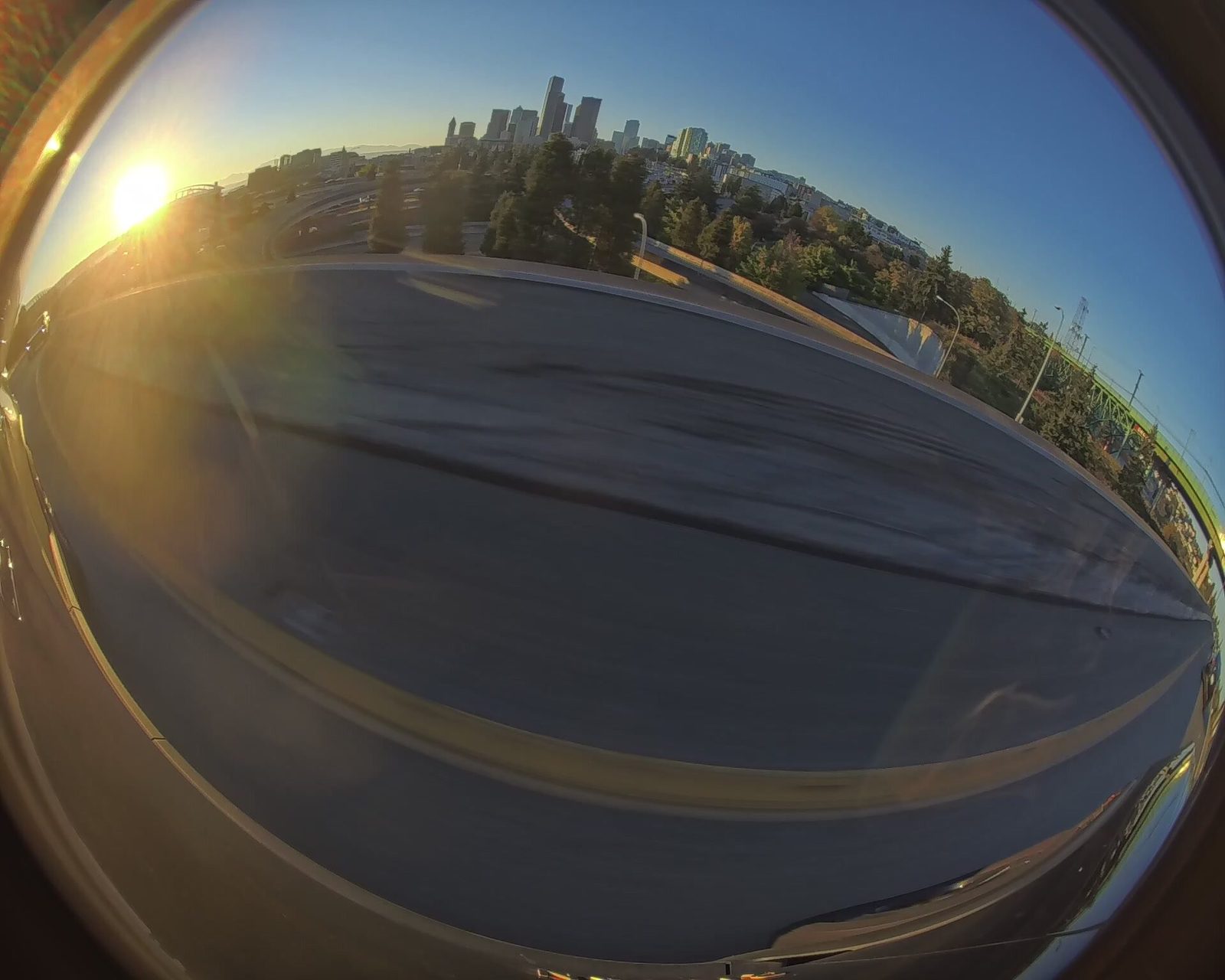
Driving from July to September filled the truck’s 2 TB dashcam drive, a SanDisk Extreme Portable SSD (opens in a new tab) (affiliate link): 240 drive folders, 1,958 GB, five cameras recording on every trip. I wanted to keep only what might make a video, and the backup drive couldn’t hold all of it. Watching it wasn’t an option. I directed Claude Code in plain language instead. It sorted the drives by where they went using GPS, found the I-90 floating bridge by the color of the tunnel lights, cut synced clips, and rendered a hyperlapse of every drive.
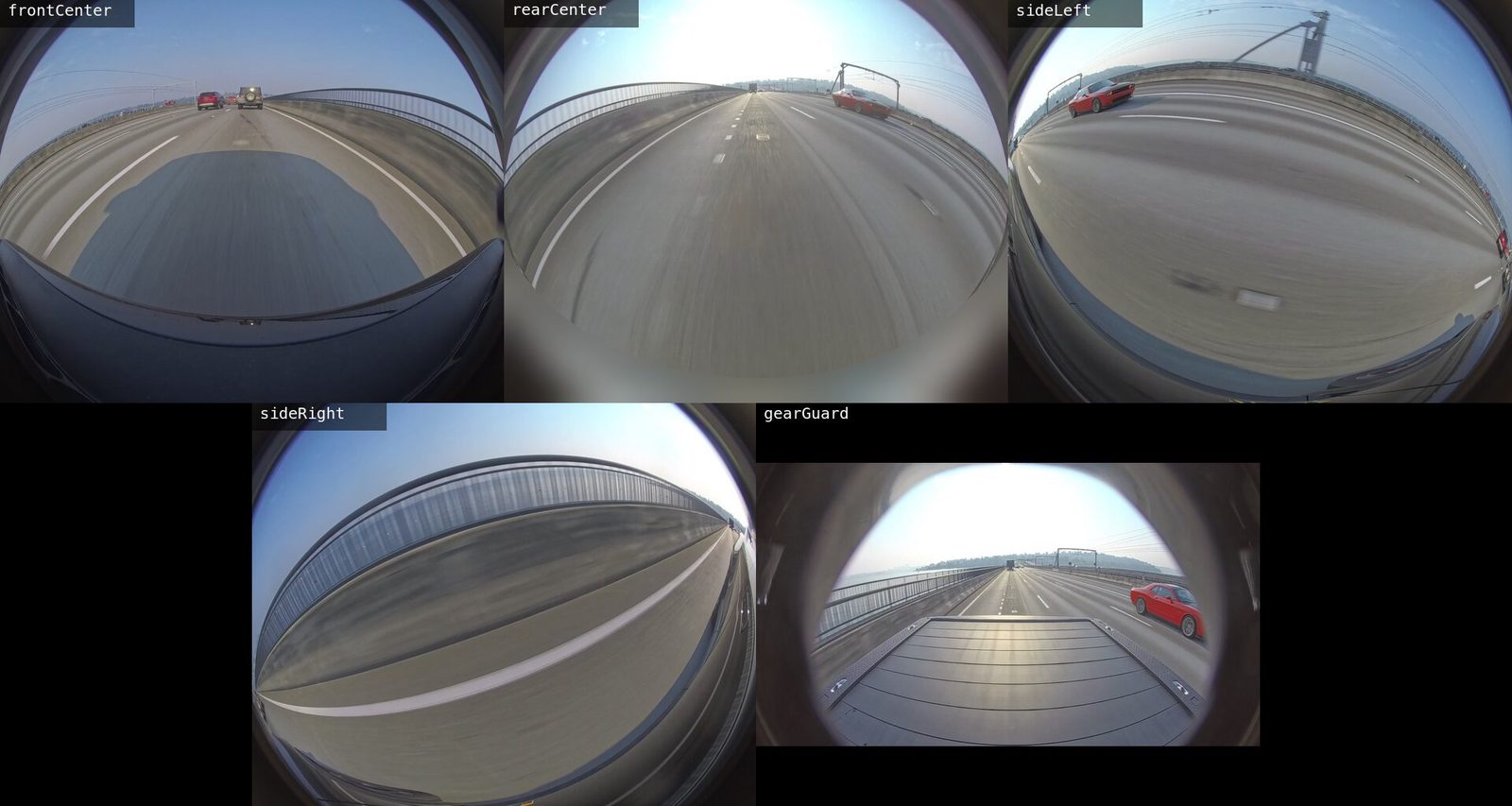
Almost every failure in that work was caught by a check: a size comparison, a frame count, a positive control, a contact sheet, or me. One failure was caught by nothing for hours. The prompts in this guide are general versions of the ones I typed, rewritten for your own footage, and each one carries the guardrail that the failure taught.
Signals already in the files
A Rivian writes one folder per drive and one MP4 per camera per 15-minute segment. Two things in those files do most of the work, and neither needs anyone to watch the video:
- GPS. The container’s
locationtag holds one fix per segment, taken at its start. That’s the only GPS in the file; there’s no per-second track. - Keyframes. Every camera writes one keyframe per second. Decoding only the keyframes, downscaled to 64 × 48, gives a per-second record of motion and color without decoding the frames between them.
Read the tag from any clip:
$ ffprobe -v error -show_entries format_tags=location -of default=nw=1:nk=1 <clip>.mp4It prints a signed latitude immediately followed by a signed longitude, such as
47.589462-122.2655. Some tags end in / and most don’t, and 0,0 means the truck
had no fix. Read the GPS location from Rivian dashcam video with
ffprobe covers every spelling. Other
dashcams store GPS differently, which is why the first prompt asks the agent to
find out rather than assume.
Tools and rules for every stage
You need:
- Claude Code, run in a terminal on the machine that has the footage mounted
- The
ffmpegandffprobecommands on thePATH - The
exiftoolcommand, for the privacy stage - A second drive with room for whatever you keep
Every prompt carries three rules, worded for its stage. They’re repeated on purpose, so that a prompt pasted on its own still carries them:
- One drive first. A bug found on the first drive costs one drive’s time. The same bug found late in a batch costs every drive before it.
- Break the check on purpose. A check that has never failed proves nothing. The agent damages its own input or output, confirms the check catches it, and then restores it.
- Say what couldn’t be verified. Matching file sizes aren’t matching content, and a report that doesn’t say so reads as if they were.
Survey every drive without changing anything
In Claude Code, from the folder that holds the drive folders, paste:
The folder <footage-folder> holds video from my truck's dashcam: one subfolder per drive, and one MP4 per camera per segment. Survey it without changing anything.

For every drive folder, use ffprobe to read each segment's duration and GPS location tag. Report each drive's start time, length, GPS points, the distance between its two farthest points, and its size on disk. Ignore any ._ files macOS has left beside the clips on a FAT32 or exFAT drive.

Rules:
- Read only. Do not move, rename, re-encode, or delete anything.
- Run on one drive first and show me the result before you run the rest.
- The location tag is written in more than one format. Parse it permissively, and treat 0,0 as no fix, not as a place.
- Before you run the whole batch, feed your parser a malformed tag on purpose and confirm that it reports the drive instead of skipping it silently.
- Cache everything you read in one file, so that later steps don't read the drives again.
- Then propose a way to sort the drives into routine and unusual, and wait. I'll tell you my regular routes.
- Finish with a list of the drives you couldn't read and anything you couldn't verify.
What went wrong here. I asked for road trips, and the agent ranked drives by distance. The ranking itself showed there were none: no drive in the batch went far. Distance was the wrong question, and only I could supply the right one: the corridor across the I-90 bridges that most of the drives used. With that, the classification became a corridor test. A drive whose every GPS point falls inside a box around that corridor is a corridor drive; anything else is worth a look. The test found 168 corridor drives, 1,594 GB, and 14 off the corridor worth keeping, 171 GB. That’s why the prompt ends by waiting for you. Your routes are context the agent can’t get from the files.
The parser also failed on its first real run, on a tag that ended in /. The
fix was a pattern that finds two signed numbers wherever they sit.
Expect the same from your own camera’s metadata, and test both spellings.
Move the drives you keep
Decide which drives to keep from the survey, then paste:
Move these drives from <footage-folder> to <backup-drive>/<kept-folder>: <list of drive folders>.

Rules:
- Before you copy anything, compare the total size with the free space on <backup-drive>, and stop if it won't fit.
- Copy first. After each drive, compare every file's size on the destination with the source.
- Do not delete anything from the source until I say so. Show me the drives whose sizes all match, and wait.
- When I confirm, remove the source files with a tool that removes only what it has copied, such as rsync --remove-source-files. Do not rely on shell-specific glob features.
- Skip any folder that another process, such as Finder, is still writing to or moving.
- Report the empty folders that a move leaves behind. Do not delete them, and make every later step skip them.
- Move one drive first and show me the result.
- Before the batch, truncate a copy in a scratch folder and confirm your size check reports it.
- Say plainly that a size match isn't a content match, and list anything you couldn't verify.
Warning
Do not let an agent delete source footage in the same step that copies it. Copy, verify on the destination, and approve the removal yourself. A move that copies and then fails to delete costs disk space; a move that deletes and then fails to copy costs the footage.
What went wrong here. A queued move used a zsh glob qualifier that the
shell Claude Code runs commands in doesn’t enable. It would have copied every file
and deleted none. Inspecting the running process caught it, and the move switched
to rsync --remove-source-files, which removes only what it copied. Later, a
cleanup command of the form rm -f $B/*.jpg was blocked by Claude Code’s own
guard, because an unset $B would expand the path to /*. The cleanup wasn’t
needed, and the guard was right to stop it.
The moves also left empty drive folders behind. Nothing failed because of them until the hyperlapse run, in a later stage, which is why this prompt asks for them to be reported now.
Find a landmark from computed signals
GPS places a drive to within a 15-minute segment, which is too coarse to find a bridge crossing. The picture has to do it, and the cheap way to read the picture is to compute a few numbers per second once and reuse them. Paste:
I want the moment in each drive where the truck passes <landmark>. The GPS has one point per segment, which is too coarse, so find it from the picture.

1. From keyframes only, downscaled to 64x48, compute per-second signals for each camera: the mean change in green from the previous keyframe, and the mean red, green, and blue. Cache them per drive and per camera, so that no later step decodes video again.
2. Propose a signal that marks <landmark>, and explain why it should separate the landmark from things that look like it.
3. Propose candidates. Do not pick for me.

Rules:
- Read only on <footage-folder>. Write only under <work-folder>.
- When you extract keyframes as raw frames, make sure ffmpeg doesn't duplicate them back up to the source frame rate.
- Before you scan everything, calibrate the signal on a drive where I know the landmark is present and a drive where I know it isn't. If both read the same, suspect your extraction before the signal.
- Run on one drive first.
- Build a contact sheet with one row per drive, labeled with the drive's name, and one frame per candidate in time order. Write a picks file with your best guess for each drive, which I can edit. Then wait for me.
- Ignore the first and last few minutes of each drive, where the truck is parking or leaving.
- If a result contradicts something already confirmed, check your tool before you report the contradiction: extract the same frame two ways and compare them.
- List the drives with no candidate, and anything you couldn't verify.
For a tunnel, the signal turned out to be color. Auto-exposure keeps a tunnel’s brightness close to daylight’s, but sodium lighting tips the front camera’s red/blue ratio above 1.0. A run of 25–150 s above that ratio, away from the first and last 3 minutes of the drive, found a tunnel on 71 of the 79 bridge drives scanned. Seven of the eight misses were after dark. Finding a bridge in dashcam video by the color of tunnel lights is the full account, including what didn’t work.
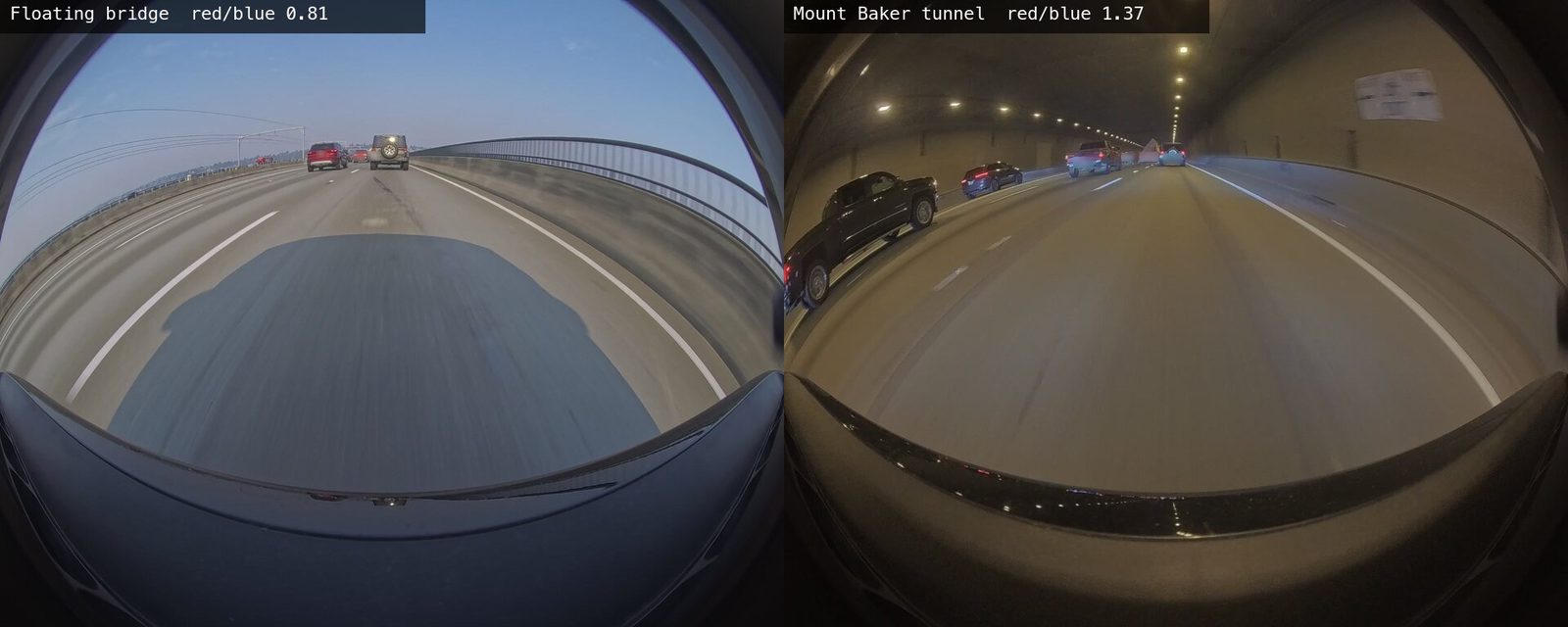
What went wrong here. The first calibration read zero change between every
pair of keyframes, parked or moving. A signal that’s flat on a known positive and
a known negative is a broken instrument, not a finding. The cause was ffmpeg
duplicating keyframes back up to 30 fps, so consecutive frames were identical.
-fps_mode passthrough fixed it. That bug is why the prompt asks for a known
positive and a known negative before the scan.
The automatic pick, one tunnel chosen by its position in the drive, was right about two times in three. The rest landed on other tunnels. The contact sheet is what turned an unreliable detector into a usable one. It showed one frame per candidate, taken from the bridge side of the tunnel. From it, I confirmed 68 crossings, couldn’t confirm two night drives, and found none on one. The first sheet was a flat grid of every candidate frame, and it was easy to match a frame to the wrong drive. One row per drive makes that mistake visible.
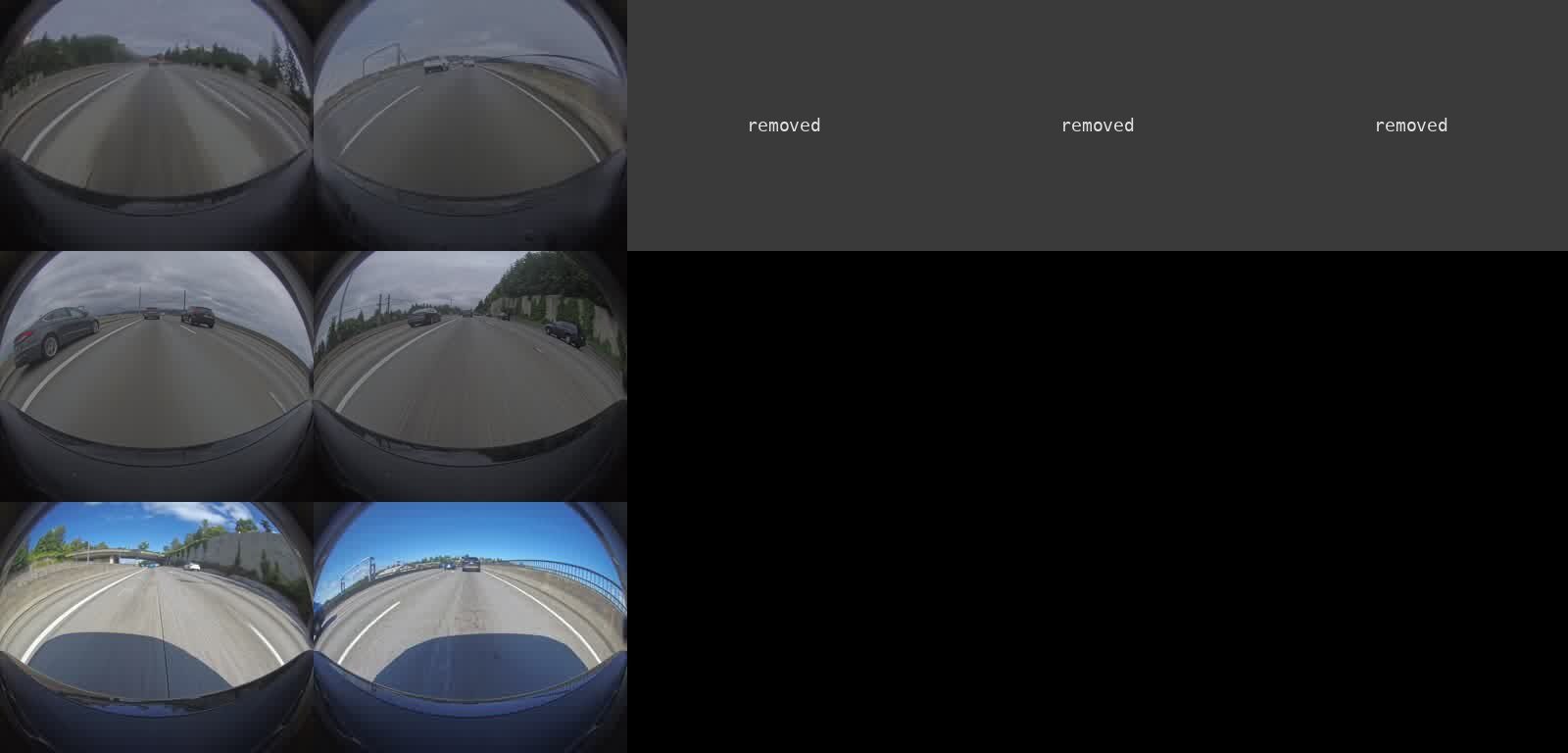
The worst wrong claim of the whole session came at this stage. Partway through,
the agent reported that the picks for some drives were the wrong tunnel, the Mercer
Island lid instead of the Mount Baker tunnel. The contact sheets had been built
with an output-side -ss, which ffmpeg applied after tiling, so the sheets showed
a different window from the one the picks named. Extracting one frame two ways
exposed it. The picks had been right, and the claim was retracted.
Cut synced clips and render hyperlapses
With picks confirmed, paste:
For each confirmed pick in <picks-file>, cut a clip from every camera, from <seconds-before> seconds before the landmark to <seconds-after> seconds after it, without re-encoding. Then render a 30x hyperlapse of every drive for every camera, decoding keyframes only.

Rules:
- Read only on <footage-folder>. Write only under <work-folder>.
- A stream copy can start only on a keyframe. Measure each camera's keyframe timing first; do not assume the cameras share it.
- A camera's first frames in a segment file can depend on frames at the end of the previous file. Cut across segment files in one pass, and check the joins.
- After cutting, compare every camera's frame count, duration, and start_time. Same length isn't the same as in sync.
- Pad a camera that stopped early with black frames, per segment, so that every camera stays the same length as the front camera. Give the black the footage's pixel format and color range, and check the range of every joined file.
- Do not trust folder names or file timestamps for timing. If a camera restarted into another folder, measure its offset from cameras that see the same scene, in more than one window. If that offset doesn't land on one of the camera's keyframes, re-encode only that camera, cut at the exact frame, and tell me which files were re-encoded.
- Test on one drive first, and include a drive where a camera stopped early.
- Before the batch, shift one camera by a second on purpose and confirm that your sync check fails. Then restore it.
- In the batch, one bad drive must be logged and skipped, not stop the run. Write each output to a temporary name and rename it when it's complete, so that a rerun resumes.
- Time the test drive and estimate the batch from that.
- If the run will outlive this session, start a watcher that tells me when the run ends or stops making progress.
- List the drives that were skipped or padded, and anything you couldn't verify.
Each keyframe becomes one frame at 30 fps, so a hyperlapse plays at 30× speed. A 36-minute drive became 72 s and took 4.4 minutes to render. The hyperlapses of 218 drives, five cameras each, came to 107 GB. Cut multi-camera dashcam clips with ffmpeg and make a hyperlapse from keyframes with ffmpeg cover each step in full.
What went wrong here. On the first drive I cut, the side-left camera came out short. On other drives it’s a different camera, or none, so the prompt measures every camera. The frame-count comparison caught it twice:
- Its GOPs run across segment files. Cutting each segment separately and joining them dropped the frames that reference the previous file: the camera came out 1.9 s short, with a jump at the join. One concat-demuxer pass over the source segments keeps them.
- It was still 29 frames short, because its keyframes fall at n + 0.967 s, not on whole seconds like the other cameras’. Landing each camera’s in-point exactly on its own keyframe makes every file start at time 0. An offset camera starts a few frames early, and setting that clip’s In point that many frames in lines it up with the others.
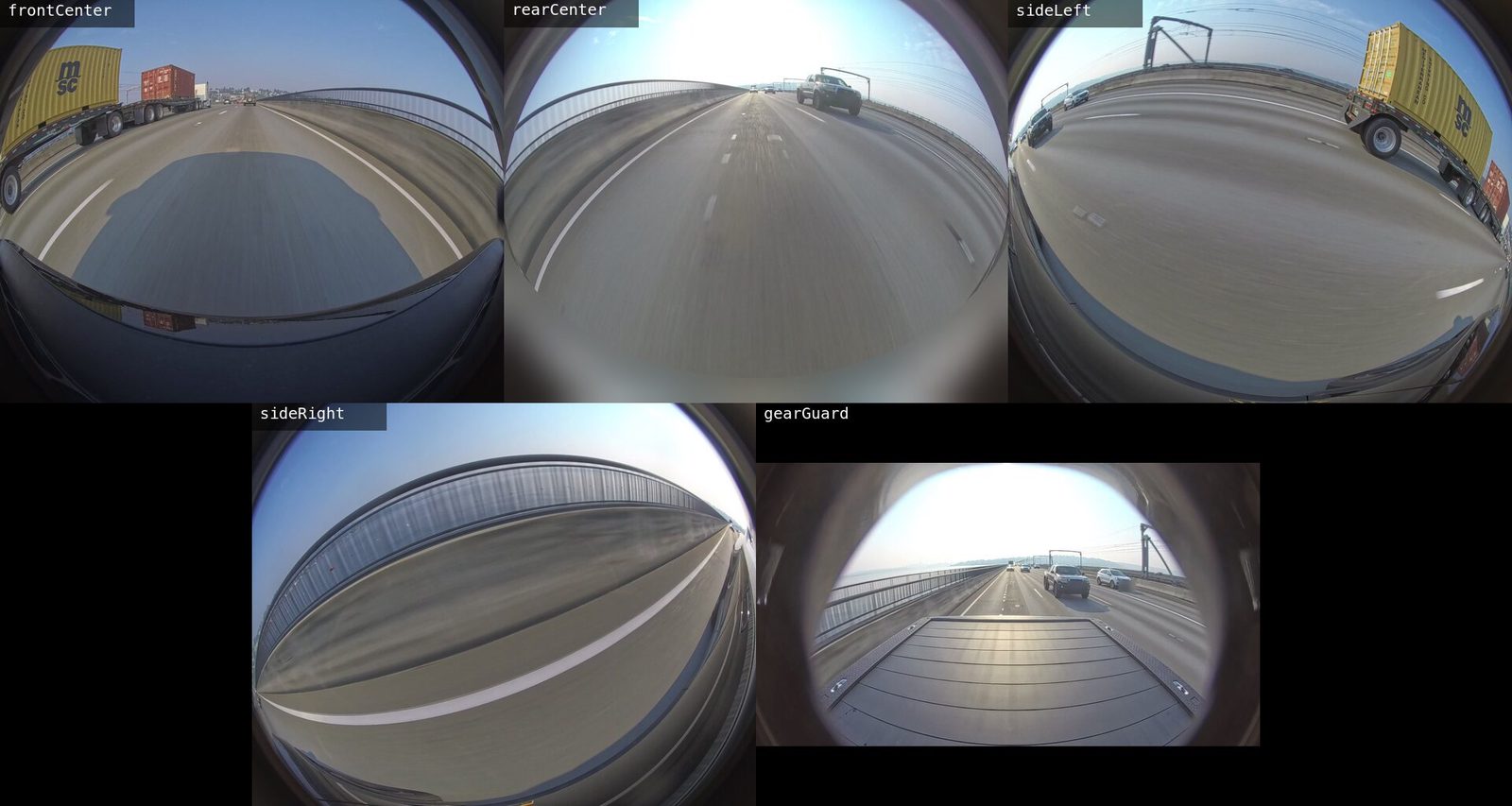
A third check, on start_time, caught a version that had the right length but
started 0.967 s late, which an editor might ignore.
The hyperlapse test drive caught two more. Two cameras came out at 1,303 frames
against the front camera’s 2,170. The first guess was the black filler’s pixel
format; the real cause was the rear camera stopping 33 s into a segment. The fix
is to pad every segment to the front camera’s length. The filler has a trap of
its own: it has to be full range like the footage, which takes -color_range pc;
Apple’s hardware encoder ignores -pix_fmt yuvj420p. A mismatched part doesn’t make the stream-copy join fail.
The joined file takes the first part’s label, so a camera whose file opens on
filler was labeled limited range throughout: 11 of more than a thousand hyperlapse files, found
and re-rendered later. Across 233 drive folders, six hyperlapse sets needed
black-filled segments.
On that same drive, the rear and side-left cameras had restarted into a sibling folder whose name was 34 s later. The name was wrong by more than a second. Correlating motion between the Gear Guard camera and the restarted rear camera, which both face backward, measured 32.7 s ± 0.1 s across four independent windows. Front against rear disagreed by 0.9 s between windows, because those two cameras don’t see the same scene. Rivian dashcam camera missing from a drive covers the restart.
Then the batch failed, and no check caught it. Background jobs in the session stopped at a time limit, so the run was relaunched detached. A detached process sends no notice when it ends. It crashed at 10:11 on one of the empty folders the moves had left behind, and it sat dead until 16:48, when I asked what was next: more than six and a half hours. Two fixes came out of it, and both are in the prompt: an empty or bad drive is now a logged skip, and a long run gets a watcher.
Keep location out of anything you publish
Paste, for each file you mean to share:
Prepare <export-file> for publishing.

Rules:
- Treat GPS in any clip as private. List every metadata field that holds a location, with: exiftool -G1 -a "-gps*" "-location*" <file>
- First run that command on an original clip from the truck and confirm that it finds the location. Then run it on the export.
- If the export carries a location, write a copy without it, run the same command again, and show me the empty result.
- List the first and last frames of every clip, and flag any frame from either end of a drive, any license plate, and any face. Do not decide for me what to blur or cut.
- Also list creation dates, and any drive date or time in file names. Strip them with -map_metadata -1 and rename the files, unless I say otherwise.
- List what this check can't see, such as a street sign or a house number in the picture.
Run the check on every export rather than reasoning about which files carry a
tag. In this work the answer differed by tool. The raw clips carry it. The
hyperlapse tool I used copies the first source file’s metadata, GPS included,
so the set stays traceable; the published hyperlapse
script strips it. Clips cut with the concat demuxer came
out without it, but a plain -c copy of a single file keeps it, and
-map_metadata -1 removes it. Show only
public landmarks on screen, and never frames from either end of a drive.
Caution
A clip from the truck’s drive carries a GPS fix for the start of every segment, and
the first segment of a drive usually starts at home. Run the exiftool check on
every file before it leaves your machine.
Detectors that didn’t work
Four ideas failed, and each failure says something about the signal rather than the threshold:
- Parked footage. The hypothesis was that recording while parked padded every drive. The measurement found 23 GB of 1,760 GB: with Gear Guard turned off, the truck stops recording seconds after parking. The scan still paid for itself, because its per-second signals fed every detector after it.
- Hard stops. The detector returned 875 candidates, and all 12 at the top were turns into parking lots or ordinary stops. Turning changes the picture as much as braking does.
- Traffic jams. Crawling traffic still changes the picture, because the neighboring cars move.
- Garage boundaries by color. An overcast sky is as gray as a concrete ceiling. It worked on a clear day and failed on a cloudy one, which is the case to test first.
One detector worked with a person in the loop. Close passes, read as a one-sided spike on a side camera while the front camera shows steady driving, were swamped by overpass shadows until the frame’s overall brightness change was subtracted. Of the top 60, 37 were real passes, and a contact sheet sorted them. A human pass was cheaper than a better detector.
Failures and the checks that caught them
| Failure | Caught by |
|---|---|
| No road trips in the footage | The distance ranking itself |
GPS parser failed on a tag ending in / | An exception on the first run |
| Move would copy but never delete | Inspecting the running process |
rm with a possibly unset variable | Claude Code’s command guard |
| Every frame difference read zero | A known parked and a known moving segment |
| Automatic tunnel pick wrong about a third of the time | A one-row-per-drive contact sheet |
| Claim that the picks were the wrong tunnel | Extracting one frame two ways |
| One camera short in a synced cut, 1.9 s and then 29 frames | Frame counts across cameras |
| The same camera starting 0.967 s late | Inspecting start_time |
| Hyperlapse cameras at 1,303 frames, not 2,170 | Frame counts on a test drive with a stopped camera |
| Folder name said 34 s; the offset was 32.7 s | Motion correlation in four windows |
| Detached run dead for more than six and a half hours | Nothing, until I asked; now a watcher |
| Hard stops, jams, and garage color | A contact sheet, a count, and an overcast day |
Each stage in depth
Each later part of this series takes one stage and stands on its own:
- Read the GPS location from Rivian dashcam video with ffprobe: the tag’s spellings, a parser, and how to strip it.
- Rivian dashcam camera missing from a drive: it restarted in another folder: finding the sibling folder and measuring its real offset.
- Cut multi-camera dashcam clips with ffmpeg without re-encoding, and keep them in sync: snapping each camera to its own keyframe.
- Make a hyperlapse from keyframes with ffmpeg without decoding every frame: the 30× render, the padding, and the full-range filler.
- Finding a bridge in dashcam video by the color of tunnel lights: the detector, the review sheet, and what didn’t work.